

Common Issues
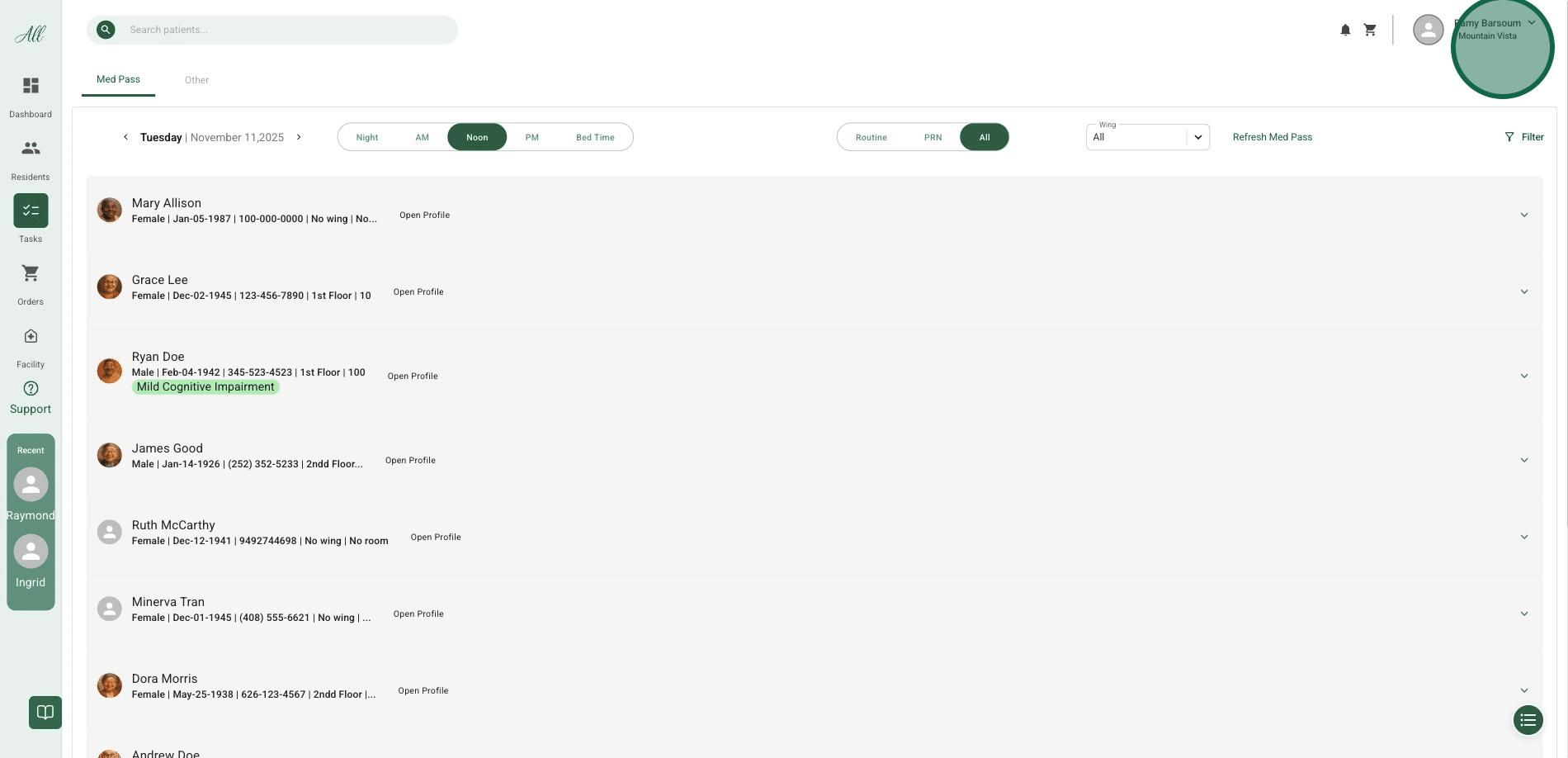
Medication not showing in MedPass
Medication not showing in MedPass
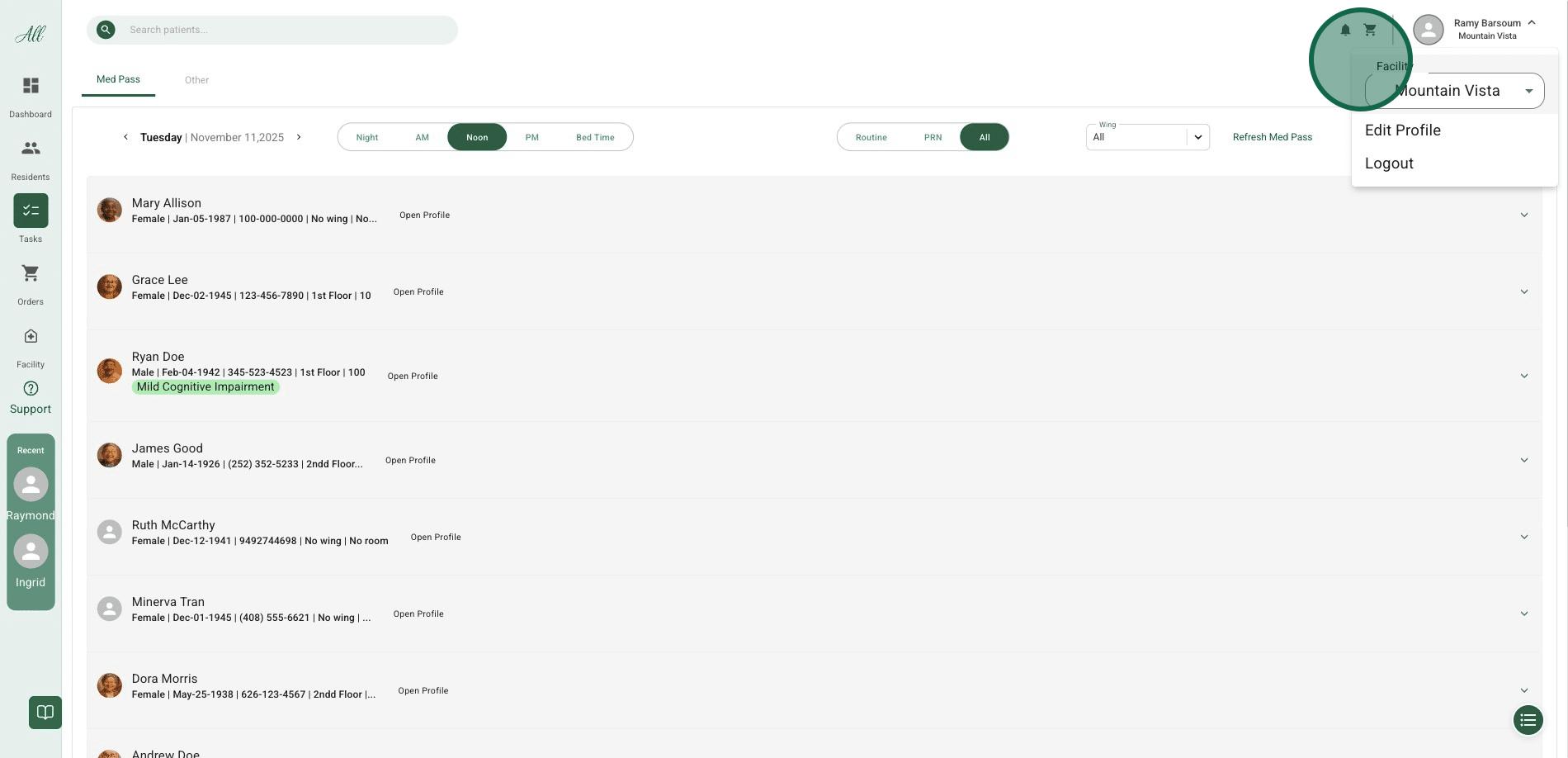
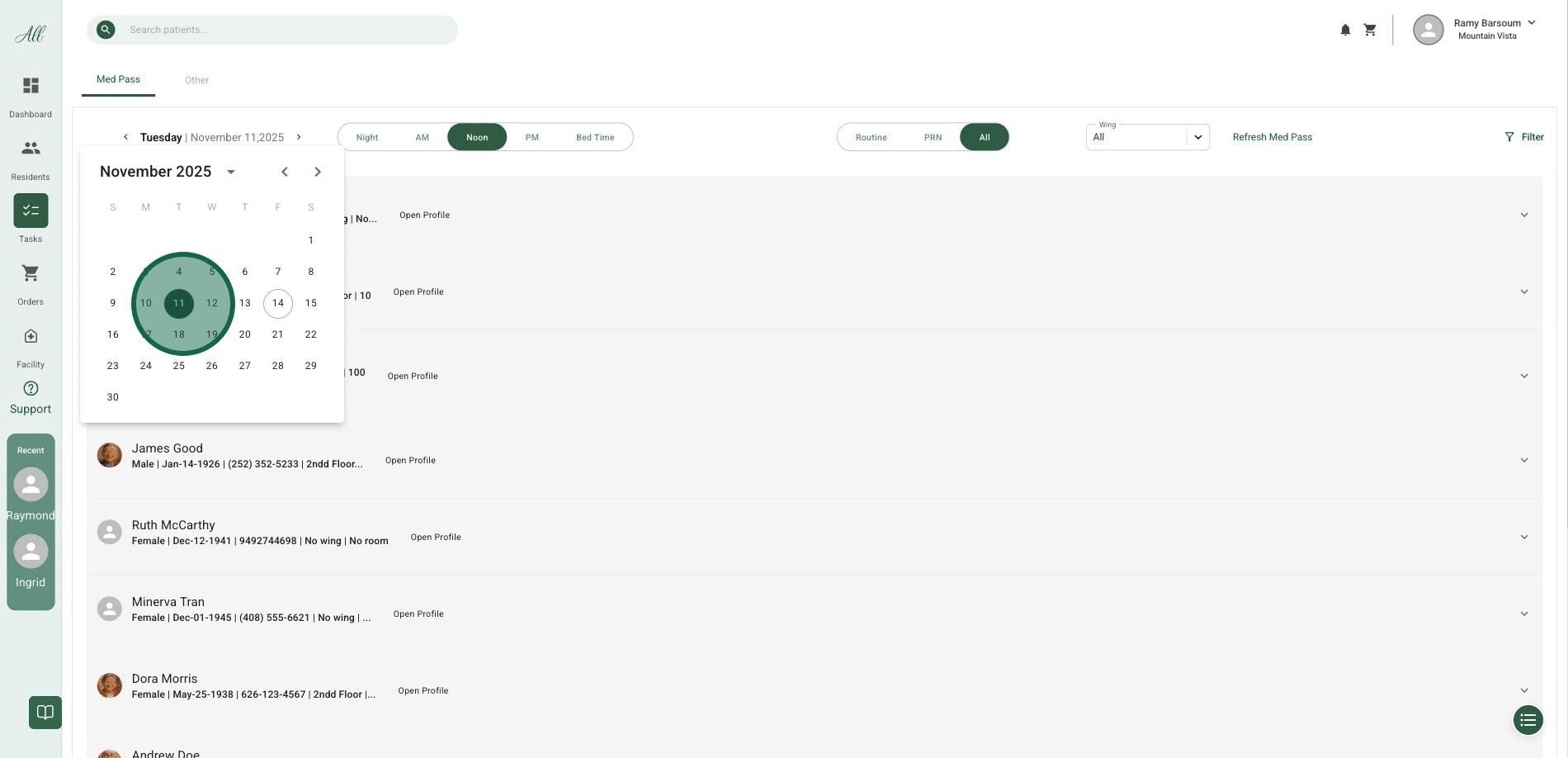
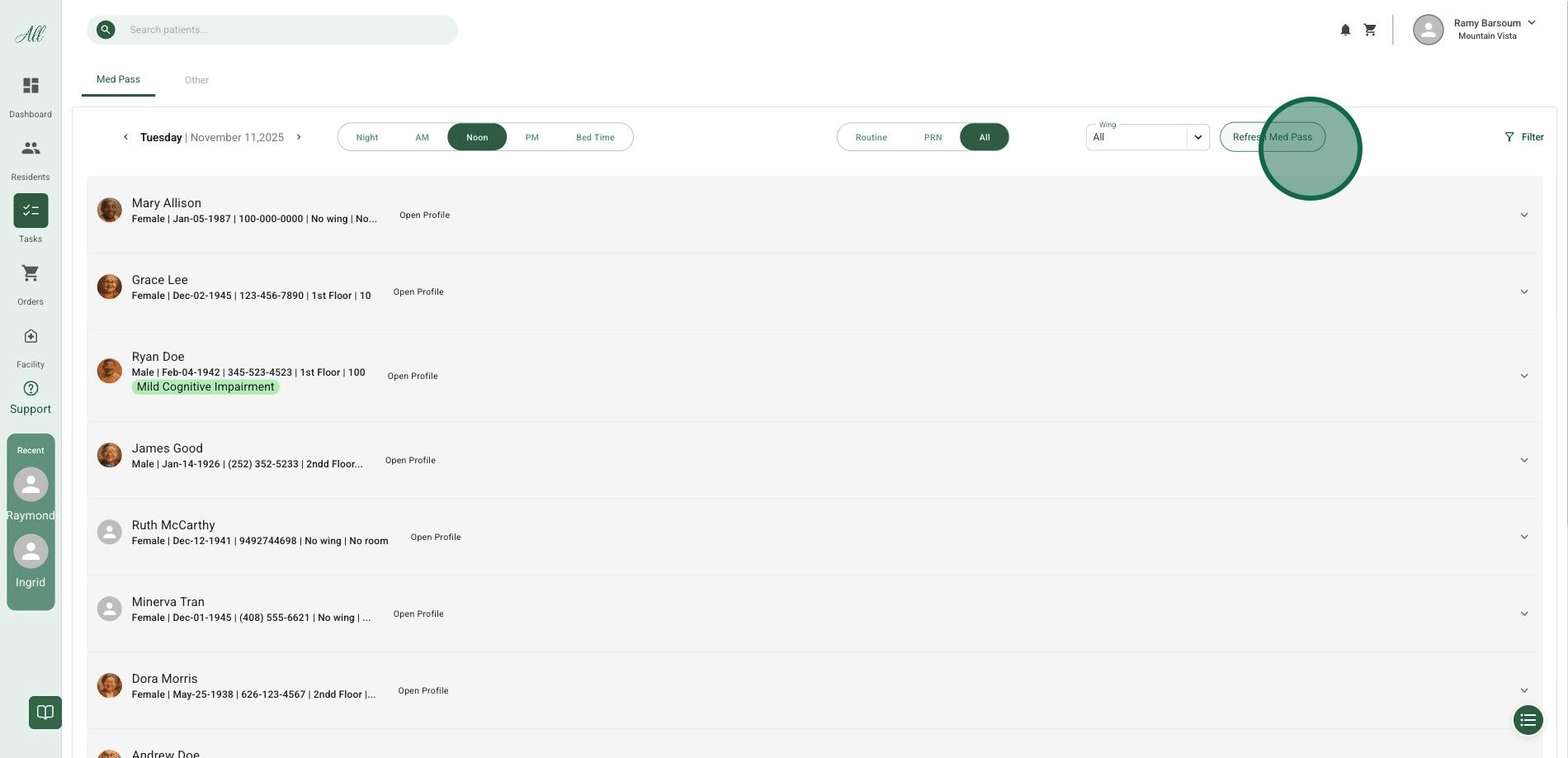
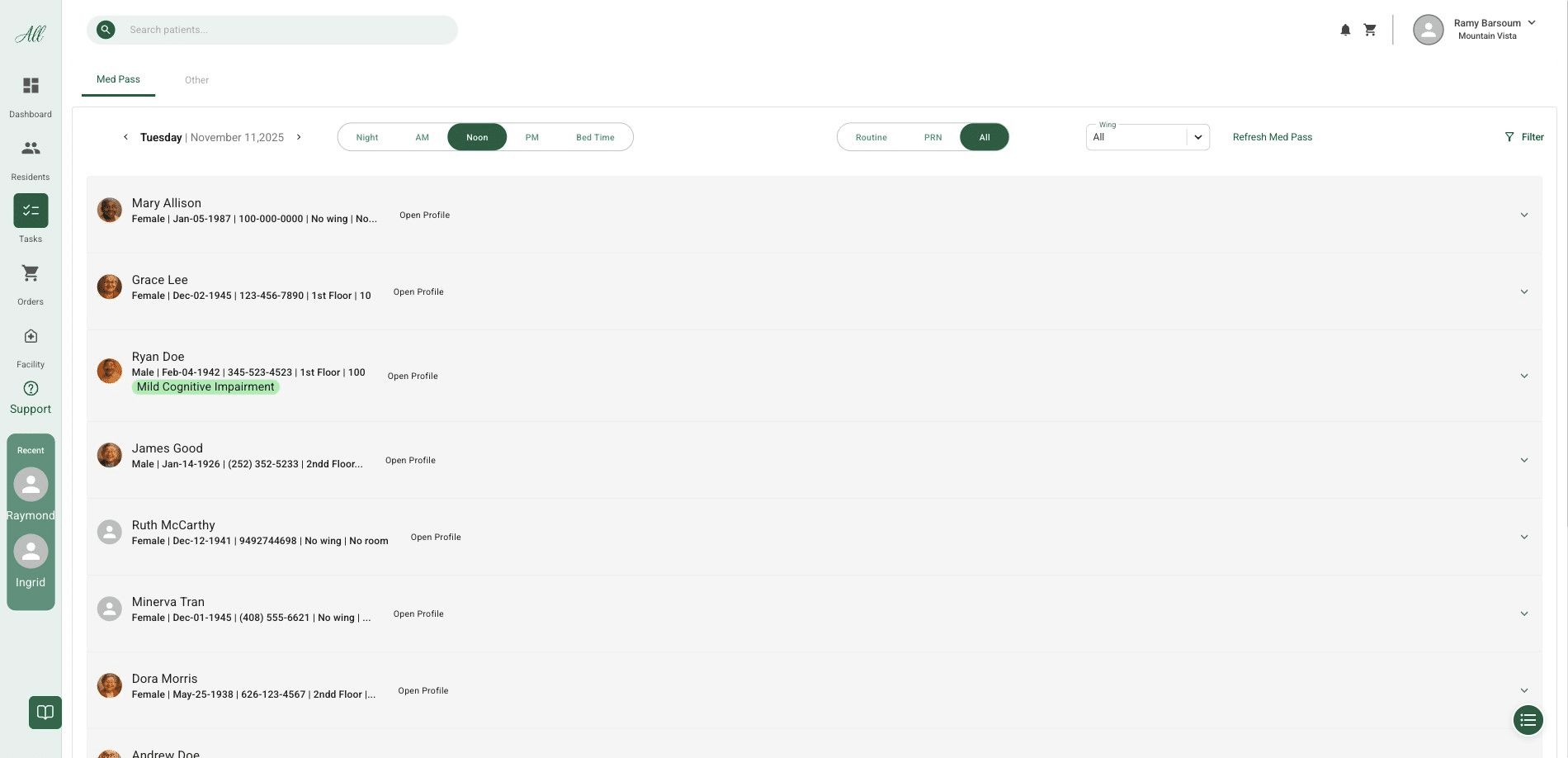
Issue: A medication is missing from the MedPass view even though it should be there.Solution: Refresh MedPassStill having issues? Contact Support →
Navigate to MedPass List
I can't log in to my account
I can't log in to my account
Possible Solutions:
- Verify your credentials
- Check for typos in email/username
- Ensure Caps Lock is off
- Try copying and pasting password
- Reset your password
- Click “Forgot Password” on login page
- Check email (including spam folder)
- Follow reset link
- Two-factor authentication issues
- Ensure correct code entered
- Code expires after 30 seconds
- Use backup codes if needed
- Account locked
- After 5 failed attempts, account locks for 30 minutes
- Contact support to unlock immediately
Patient isn't showing up in search
Patient isn't showing up in search
Possible Causes:
- Search criteria too specific
- Try searching with less information
- Use partial name (last name only)
- Try date of birth only
- Patient not enrolled yet
- Check if enrollment is complete
- Look in Pending Pool
- Verify patient was added to your facility
- Wrong facility selected
- Switch to correct facility from dropdown
- Patient may be at different facility
- Data entry error
- Check for misspellings
- Verify name format (Last, First)
- Check date of birth format
Can't add a new patient
Can't add a new patient
Check the following:
- Required fields
- All required fields must be completed
- Red asterisks (*) indicate required fields
- Error messages show which fields need attention
- Duplicate patient
- System may detect potential duplicate
- Review suggested matches
- Confirm this is a new patient
- Facility status
- Facility must have Active contract status
- Services must be configured
- Contact Operations if facility is Pending
- Permissions
- Ensure you have patient enrollment permissions
- Contact your administrator for access
Visit scheduling is not working
Visit scheduling is not working
Common Problems:
- No provider assigned
- Patient must have assigned provider
- Check patient profile for provider assignment
- Contact Operations for assignment
- Provider not available
- Check provider’s active days
- Verify provider capacity not exceeded
- Try different date/time
- Schedule conflicts
- Selected time may be unavailable
- Check for existing appointments
- Refresh calendar view
- Calendar not loading
- Refresh browser page
- Clear browser cache
- Try different browser
Patient stuck in Pending Pool
Patient stuck in Pending Pool
Why patients remain pending:
- Awaiting provider assignment
- Normal for first 24 hours
- Operations team assigning provider
- Will be notified when assigned
- Missing information
- Check for incomplete fields
- Red flags indicate issues
- Complete required information
- Service configuration issues
- Selected services may need setup
- Contact Operations for assistance
- Provider capacity
- May be waiting for provider availability
- Higher priority patients assigned first
Medications not showing for patient
Medications not showing for patient
Possible Reasons:
- No prescriptions yet
- Provider may not have prescribed yet
- Check after first visit
- Prescription pending
- May be in pharmacy queue
- Check status with pharmacy
- Different prescriber
- Prescriptions from outside providers won’t show
- Only AllCare prescriptions visible
- System sync delay
- May take few minutes to appear
- Refresh page
- Try again in 5-10 minutes
Error Messages
”Session Expired”
Cause: You’ve been inactive for too long or logged in from another location Solution:- Log in again
- Save work frequently to avoid losing data
- Sessions expire after 30 minutes of inactivity
”Access Denied”
Cause: You don’t have permission for this action Solution:- Contact your facility administrator
- Request appropriate permissions
- Verify you’re accessing correct facility
”Network Error”
Cause: Connection to AllCare servers lost Solution:- Check your internet connection
- Refresh the page
- Try again in a few moments
- Check system status page
- Contact support if persists
”Duplicate Patient Found”
Cause: System detected possible duplicate patient Solution:- Review suggested matches carefully
- If same patient: use existing record
- If different patient: confirm and proceed
- Verify demographics are correct
Performance Issues
Pages loading slowly
Pages loading slowly
Quick Fixes:
- Clear browser cache
- Chrome: Settings > Privacy > Clear browsing data
- Edge: Settings > Privacy > Choose what to clear
- Safari: Preferences > Privacy > Manage Website Data
- Check internet speed
- Minimum 5 Mbps required
- Run speed test: speedtest.net
- Contact IT if speed is low
- Close unnecessary tabs
- Too many open tabs slow browser
- Close other applications
- Restart browser
- Update browser
- Use latest version
- Chrome/Edge update automatically
- Check Help > About to verify
Screen freezing or not responding
Screen freezing or not responding
Steps to resolve:
- Wait a moment
- Large data loads take time
- Give it 30-60 seconds
- Refresh the page
- Press F5 or Ctrl+R (Windows)
- Cmd+R (Mac)
- Save any work first if possible
- Restart browser
- Close all browser windows
- Reopen and log back in
- Check system requirements
- Verify your system meets requirements
- View requirements →
Browser-Specific Issues
Chrome
If having issues:- Update to latest version
- Disable extensions temporarily
- Try Incognito mode
- Reset browser settings
Safari (Mac/iOS)
Common fixes:- Clear website data
- Disable “Prevent cross-site tracking”
- Allow cookies from AllCare
- Update macOS/iOS
Edge
Troubleshooting:- Clear browsing data
- Disable tracking prevention for AllCare
- Reset browser settings
- Update Windows
Getting Additional Help
Contact Support
Get help from our support team
View FAQ
Common questions and answers
Check System Status
See if there are known issues
Training Request
Schedule training session
Report a Problem
If you can’t resolve the issue:Contact Support
- Email: support@allcare.ai
- Phone: 949-570-7750
- Include all documentation
Quick Tip: Take a screenshot of error messages - this helps support resolve issues faster!